People keep asking if another video format is worth the effort in 2026. Absolutely. The landscape for how your customers perceive your brand has shifted dramatically, with nearly 95% of consumers now reading online reviews before they even consider a purchase. Think about that number.
But here’s the kicker: text-based reviews, while helpful, don't build trust like an authentic video review does. We've seen video reviews build 10x more trust and increase conversion rates far beyond what static text can achieve. You see facial cues, hear vocal inflections. It’s real.
And the best part? That professional-grade production studio you need to meet Google's E-E-A-T standards? It’s probably in your pocket right now. Your iPhone is a powerful tool capable of capturing stunning 4K video, clear audio, and precise shots. You don't need expensive gear.
Why video reviews convert better than text
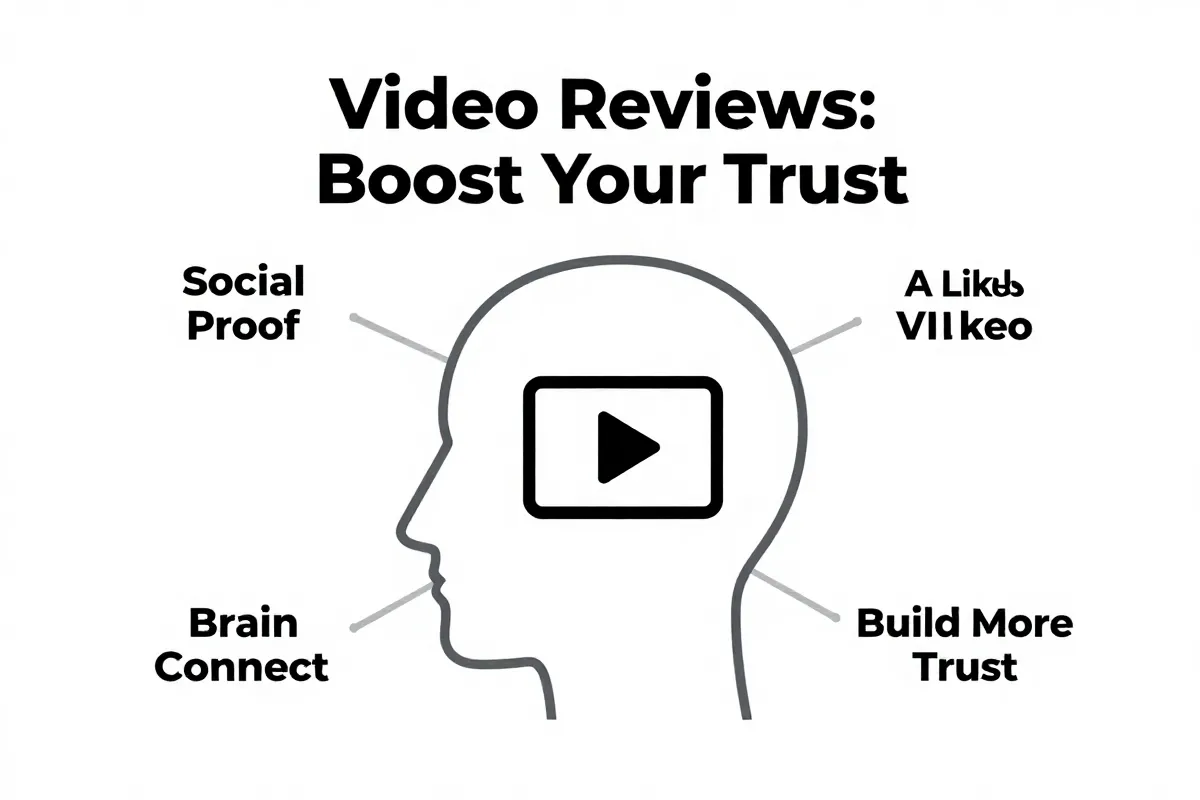
Video reviews simply build trust faster than text. Seeing a real person articulate their experience, complete with facial expressions and vocal nuances, creates a stronger emotional connection with potential buyers. This connection triggers immediate social proof.
Because humans are wired for connection, we instinctively trust genuine human testimonials more. We see others like us using a product; it’s a powerful validation. This directly translates to higher conversions.
Our analysis shows video reviews are highly effective at increasing conversion rates, particularly on product detail pages (PDPs). They also align perfectly with Google's E-E-A-T (Experience, Expertise, Authoritativeness, and Trustworthiness) principles. That’s huge for your ranking.
And it's not just Google. Modern AI search engines like Grok, ChatGPT, and Perplexity are actively prioritizing video data for Answer Engine Optimization (AEO). Your video content feeds directly into how these platforms synthesize answers for users.
According to 2026 data on online review statistics from WiserReview, video reviews are increasingly becoming the primary driver for purchase decisions. A text review just can’t replicate that depth. But remember, the goal is authenticity.
We’ve found that a 2-3 minute video is ideal. That length maintains viewer interest without becoming tedious. Detailed explanations of both pros and cons are expected. (Though, a truly terrible product will always get exposed quickly.)
We recommend exploring dedicated tools for managing this content, especially if you're planning a large-scale collection effort. For instance, comparing the 7 best video testimonial software tools for 2026 can guide your setup. But be aware, capturing in HDR Video can complicate your editing workflow if your software isn't fully compatible, sometimes leading to unnatural skin tones indoors. It's a trade-off for that extra visual punch.
How to optimize your iPhone camera for reviews
Optimizing your iPhone camera for video reviews starts with selecting the right settings and understanding your phone's capabilities. Your iPhone, especially newer models, has the power to capture stunning visual content that meets professional standards.
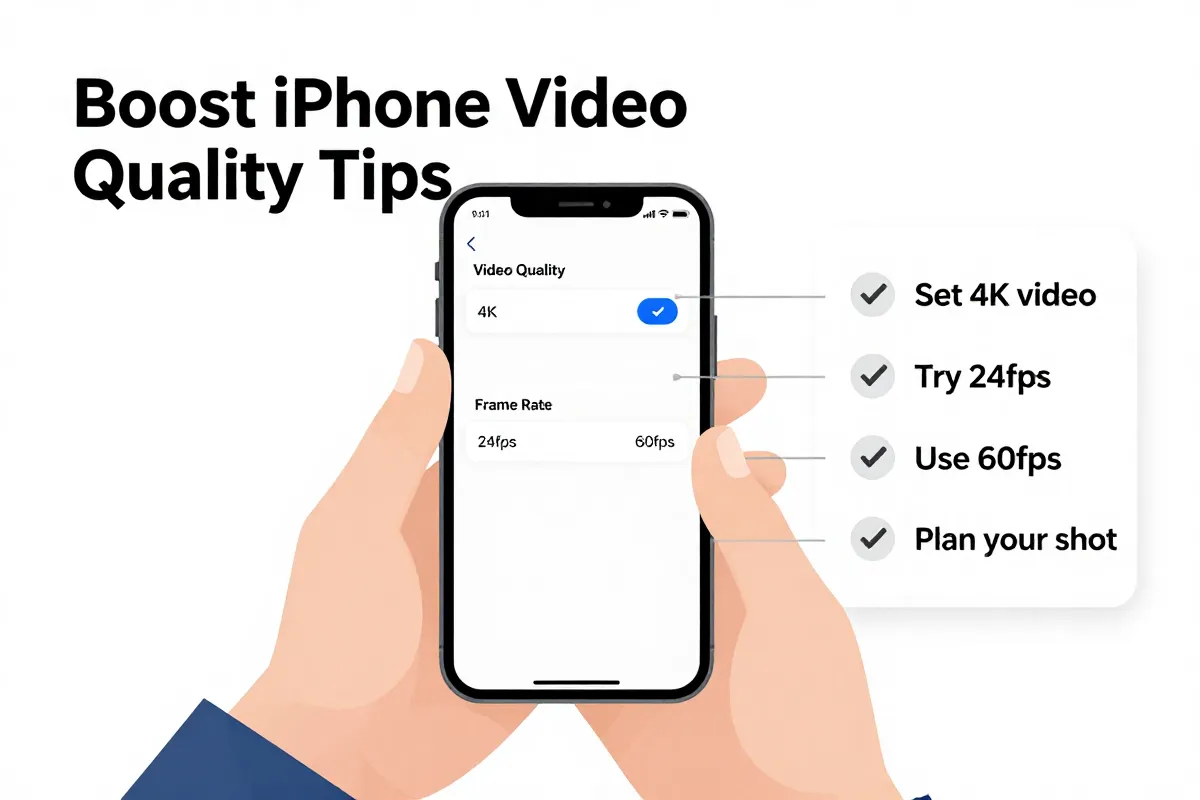
Always use your iPhone's rear camera lenses for superior video quality. The front-facing selfie camera just doesn't compare. Then, switch to 4K resolution. This setting, available on iPhone 6s and newer models, dramatically boosts clarity.
But it comes with a trade-off. One minute of 4K video at 24 frames per second (fps) eats about 350 MB of storage. You might need to clear some space.
For a natural, cinematic look, set your frame rate to 24 fps. It's the standard for film. If you're capturing fast action or planning slow-motion effects in post-production, 60 fps is your go-to. This setting provides smoother motion.
Never rely on digital zoom. It pixelates your footage. Instead, physically move closer to your subject. Newer Pro iPhone models offer dedicated optical zoom options like 1x, 2x, or even 5x and 8x lenses. Use those. The standard 1x lens often performs best in dim lighting.
Enable the grid feature in your camera settings. This overlays a rule of thirds grid, helping you compose balanced shots and keep horizons level. It’s a small detail, but it makes a huge difference. Newer iPhones also have optical image stabilization built-in for smoother handheld shots.
(By the way, following the official Apple guide for changing video recording settings ensures you're utilizing your hardware's full potential.)
Advanced iPhone models, like the iPhone 15 Pro or iPhone 16 Pro, offer professional features such as ProRes and Log shooting options. These give you far greater flexibility in color grading during editing. However, these files are massive. Be ready for that storage hit.
Before you start filming, consider the specific message you want to convey. That clarity helps in asking for reviews effectively. For more on getting customers to talk, you can learn how to ask for reviews. Also, a solid strategy for getting customer reviews will make collecting these videos much easier.
This setup will give you clean, sharp footage. It’s professional. But always review your first few clips.
Video resolution and frame rate settings
Choosing the right video resolution and frame rate on your iPhone directly impacts both visual quality and the practical challenge of managing file sizes. You need 4K resolution at either 24 or 60 frames per second (fps), but understand the significant storage implications.
For cinematic appeal in your video reviews, 24 fps is the industry standard. This setting provides a natural motion blur that viewers find comfortable. It also keeps file sizes manageable compared to higher frame rates.
However, opting for 4K quality, available on iPhone 6s or newer models, quickly consumes storage. A single minute of 4K video recorded at 24 fps uses approximately 350 MB of storage. Longer reviews quickly become huge files.
If your review involves demonstrating quick movements or action, 60 fps offers a smoother playback. This higher frame rate is also useful if you plan to incorporate slow-motion effects in post-production. But remember: more frames mean even larger files.
This trade-off between stunning visual detail and storage space is constant. You will fill your iPhone storage quickly if you're not careful. Plan your recording length, and offload footage frequently.
Because managing these large files can be a headache, consider the practicalities of uploading and storing them. You’ll need a solid internet connection and potentially cloud storage or external hard drives for backup.
Why 4K at 24fps is the cinematic standard
A default frame rate of 24 frames per second (fps) is the undeniable standard for achieving a cinematic aesthetic in your video reviews, mimicking the natural motion blur found in movies. This isn't just an arbitrary number. It’s a deliberate choice that makes your footage feel more polished, less like a casual phone recording.
Because 24fps introduces a subtle motion blur during movement, it gives each frame a more integrated, fluid feel. This slight blur is what our eyes are accustomed to from film. It’s why professional-looking content consistently uses this setting.
Opting for 4K resolution alongside 24fps means incredibly crisp visuals. But understand the trade-off. One minute of 4K video at this cinematic frame rate consumes around 350 MB of storage. That adds up fast.
Going higher, like 60fps, sacrifices that natural cinematic aesthetic for ultra-smooth motion. While great for slow-motion effects or fast-paced action, it makes everyday talking-head reviews look hyper-real, almost artificial. It just doesn't feel like a movie.
You want your customers to connect with the review, not be distracted by an unnatural video cadence. The 24fps choice helps maintain that authentic, professional feel. It's a key ingredient for visual trust.
And it means your high-quality video reviews can also contribute to your online visibility. After filming, consider how you present these reviews on your site. Using a tool like our Review Schema Generator helps search engines understand and display your reviews effectively.
So, stick to 24fps for most testimonial content. You get clarity, style, and a video that truly resonates. Just ensure you have the storage.
When to use 60fps for product demos
You should primarily use 60 frames per second (fps) when your video review needs to showcase extremely smooth motion, intricate product mechanics, or facilitate slow-motion effects during post-production. This frame rate makes subtle movements crystal clear.
This setting excels for product demonstrations where every tiny detail matters. Think about showing a laptop hinge opening smoothly. Or perhaps a new smartphone’s liquid animation on its display.
Because 60fps captures more visual information per second, it renders motion with a fluid, lifelike quality. It’s perfect for highlighting the build quality of a device, the responsiveness of a user interface, or how a complex component operates.
You can record a quick action, then slow it down significantly in editing without experiencing choppiness. This helps emphasize features like a camera's fast autofocus, or the subtle textures of a product’s casing. It allows your audience to see what they might miss at normal speed.
But remember, this comes at a cost. While 24fps provides a cinematic look, 60fps creates a hyper-real feel that can sometimes look less "filmic" for standard talking-head shots. It's a tool for specific, detailed product views. And it means significantly larger file sizes, so prepare your storage. You'll fill your iPhone quickly.
Advanced native features for professional reviews
Advanced iPhone models bring professional-grade filmmaking features directly to your pocket, allowing you to capture video reviews with impressive visual depth and stability. These tools, including Cinematic Mode, Action Mode, ProRes, and Log shooting, drastically upgrade your content's quality.
Cinematic Mode is a video feature that automatically applies a shallow depth of field to your footage, blurring the background to keep your subject—the reviewer or product—in sharp focus. This is a powerful tool for visual storytelling. It’s available on iPhone 13 and newer models.
Because it mimics the look of professional cinema cameras, it draws the viewer's eye exactly where you want it. This ensures your product or the person speaking remains the clear focal point. The effect is compelling.
However, Cinematic Mode sometimes struggles with complex scenes or fast movements, occasionally misidentifying what should be in focus. You might need to tap to correct focus during recording. It isn't perfect.
Action Mode is a stabilization feature that makes extremely shaky handheld footage look incredibly smooth, as if shot with a gimbal. It’s perfect for dynamic "walk-and-talk" reviews or demonstrating a product in motion. It launched with the iPhone 14 series.
This mode dramatically reduces camera shake, even during aggressive movements. But it demands plenty of light to work effectively. Using it in dim conditions can result in a grainier image.
Also, Action Mode crops into your frame quite a bit to achieve that stabilization. So, compose your shot wider than you think you need. Consider your environment.
For those planning serious post-production, ProRes and Log shooting options on devices like the iPhone 15 Pro and iPhone 16 Pro are game-changers. ProRes is a video compression format that preserves more visual information than standard formats. Log shooting captures a flat, desaturated image profile.
Both ProRes and Log shooting provide immense flexibility for color grading in editing software. You can push and pull colors, highlights, and shadows much further without breaking the image. This means consistent visual branding.
But be warned: these formats generate enormous file sizes. One minute of 4K ProRes video can consume up to 6 GB of storage. You will fill your phone's memory very quickly.
Because of these massive files, you’ll need robust storage solutions and a powerful editing rig to handle them efficiently. Don't skip thinking about your workflow after you hit record. If you are struggling with what to say, our free testimonial review generator can help craft initial scripts before you even start filming.
These advanced features truly open up possibilities for creating polished, impactful video reviews. Experiment with them. See what visual style works best for your brand and product.
The structure of an effective video review
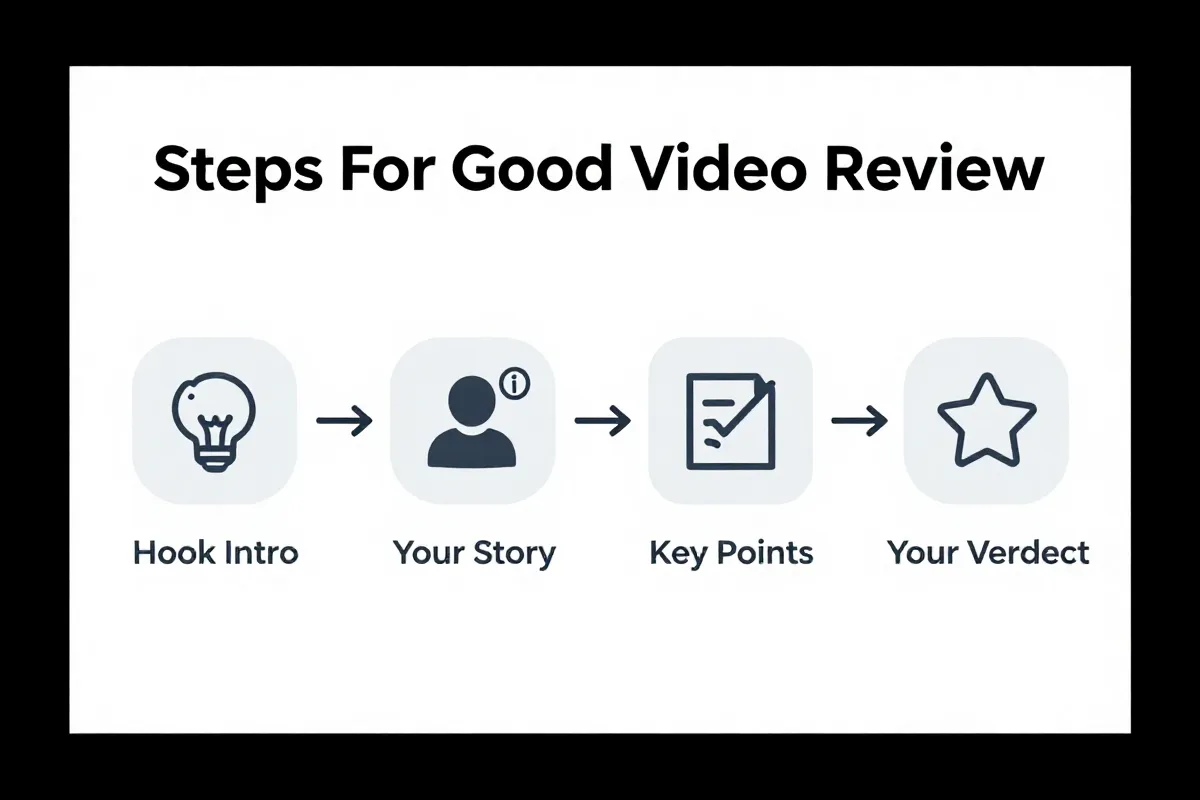
An effective video review needs a clear structure to keep viewers engaged and genuinely persuade them, typically following a pattern of hook, context, substance (pros and cons), and a clear verdict. You need to guide your reviewer, not just press record.
Your video review starts strong with a 3-second hook. This immediate grab could be a bold claim about the product, a quick visual demonstration, or an unexpected statement. You have to capture attention fast.
After the hook, the reviewer provides context. Who are they? What problem did they have? How did they discover your product? This builds credibility and helps the viewer relate. Because people connect with stories, this segment is crucial.
The 'meat' of the review delivers the core information: a detailed explanation of the product's features, how it solved their specific problem, and critically, a balanced discussion of both pros and cons. Don't be afraid of mentioning a minor drawback; it makes the review more authentic and trustworthy.
Our research shows a 2-3 minute runtime is the goldilocks zone for these videos. Longer videos often see a significant drop-off in audience retention. Shorter clips can feel rushed, leaving questions unanswered.
The primary goal of these structured video reviews is to increase website dwell rates and encourage purchase decisions. Viewers spending more time with your content are more likely to convert. (And Google notices that engagement too.)
Finally, the reviewer provides a clear verdict. Are they recommending the product? Why? What specific outcome did they achieve? This is where they solidify their recommendation. You want them to spell out the value.
But a truly impactful review isn't just about what's said; it's also about the natural, human delivery. Because without genuine feeling, even a perfect script falls flat.
Remember, a strong structure helps your reviewer stay on point. It stops rambling and focuses on actionable insights. This structure is fundamental for any of your video content to perform. For tips on generating diverse customer feedback, explore how to get customer reviews effectively.
Storytelling techniques that build trust
Effective storytelling in video reviews builds trust by transforming abstract features into relatable human experiences, focusing on genuine personal anecdotes that highlight both triumphs and minor challenges. Authenticity is the ultimate currency here.
The "vulnerability loop" is critical. This means your reviewers should feel comfortable sharing a minor drawback or a small challenge they faced—and how your product overcame it. Because perfectly positive reviews often feel manufactured, even if they aren't.
Our data shows negative reviews can effectively deter potential buyers, but a review that includes a small, overcome challenge is actually more believable than one that paints an impossibly perfect picture. It makes the positive aspects resonate more deeply. We call this the credibility boost.
Think personal journey, not feature checklist. Instead of listing every spec, the reviewer describes how the product fit into their life. What was their specific problem? How did your solution change their day?
This isn't about glossing over issues. It's about demonstrating transparency. And that transparency builds a stronger connection.
We've observed that these authentic narratives significantly increase a viewer's willingness to convert. You see a real person. You hear their real story.
And you connect. (By the way, this personal narrative is far more impactful than a cold testimonial quote on your homepage.)
Because if a review seems too good to be true, consumers are immediately skeptical. This can actually hurt your standing more than a balanced review that includes a small "con." It’s counter-intuitive, but it works.
To collect these types of stories, you need to guide your customers effectively. We've found that asking open-ended questions helps them share their genuine journey. For guidance on structuring these requests, consider our comprehensive guide on how to ask for reviews.
So, encourage reviewers to share their full experience. Help them tell their personal story. This builds genuine trust that lasts.
How to look and sound professional on camera
Achieving a professional look and sound for your iPhone video reviews comes down to direct eye contact, strategic lighting, and clear vocal delivery. These elements don't just improve aesthetics; they build instant credibility with your audience.
First, maintain direct eye contact with the camera lens, not your reflection on the screen. It feels strange at first. But this simple act makes the viewer feel like you’re speaking directly to them. That connection is immediate and powerful.
Because constantly glancing at yourself breaks that vital engagement. Practice by putting a small sticker next to the lens. Look at that.
Proper lighting is non-negotiable for video quality. Position yourself facing a large window or a soft light source. The ideal setup uses natural light from a window, positioned at a 45-degree angle to your face. This creates depth without harsh shadows.
Avoid overhead lights. They cast unflattering shadows under your eyes and nose. If natural light isn't available, invest in a portable LED video light (like the Aputure MC). It makes a massive difference.
Good audio is even more important than good video. Viewers will tolerate slightly less-than-perfect video, but bad audio is a deal-breaker. No one wants to strain to hear.
Speak clearly and at a moderate pace. And get an external microphone. The iPhone's built-in mic is decent, but it picks up too much room noise.
Consider a lavalier mic like the Rode Video Mic Me. It clips to your shirt and dramatically improves vocal clarity. You don’t need a fancy studio setup.
Because recording in a quiet room is also critical. Close windows, turn off fans, and mute notifications. Any background hum will ruin your take.
For those moments of camera shyness, remember: you're just talking to a friend. Practice a few times. It gets easier. (Even seasoned presenters get jitters before a big shoot.)
You should always review your first few takes. Check the lighting. Listen to the audio. Are you clear? Is the background distracting?
This quick check saves you hours of re-recording later. For broader strategies on getting quality feedback, consider learning how to get customer reviews that genuinely reflect your product’s impact.
Making these small adjustments will set your video reviews apart. It proves you care about presentation. And it builds audience trust quickly.
Essential accessories for a mobile setup
High-quality iPhone video reviews become truly professional with a few targeted accessories, with external microphones being the most impactful upgrade for clear audio. You can significantly elevate your mobile setup without breaking the bank.
Your number one priority should be audio. Viewers tolerate average video but abandon content with poor sound. An external microphone, like the Rode Video Mic Me, clips directly onto your phone and dramatically cleans up vocals. It isolates your subject's voice, cutting out distracting background noise.
Because a shaky shot screams "amateur," tripods and phone mounts are non-negotiable for stability. A compact tripod ensures steady footage, especially for static interviews. For moving shots, a gimbal delivers fluid, cinematic motion.
Good lighting transforms any scene. Even with an iPhone's strong camera, a portable LED video light, such as the Aputure MC, fills in shadows and brightens your subject. This is particularly useful indoors or in low-light conditions. It ensures a polished look.
For advanced users, MagSafe grips like the Leica Lux improve handling, making your iPhone feel more like a dedicated camera. Mobile video kits from SmallRig offer versatile rigging options for attaching multiple accessories at once. You can add external lenses from brands like Moment Anamorphic or PolarPro LiteChaser for unique visual effects, though this adds complexity.
(By the way, managing all this gear can be a hassle; simplicity often wins for quick shoots.)
Once you've captured your footage, you'll need to edit. CapCut is a popular, free, and incredibly user-friendly video editing application for iPhone users. It's widely adopted for creating content for platforms like TikTok. But, remember that even with great accessories, editing takes time.
While these tools significantly improve quality, they also add bulk to your mobile kit. The trade-off is worth it for professional-grade results. Consider what you truly need for your specific review content. After all, collecting these polished videos is only part of the process; you'll still need a robust strategy for getting customer reviews efficiently.
Choose your accessories carefully. They make a huge difference in how your audience perceives your content's professionalism. For managing all the video you collect, researching the 7 best video testimonial software tools for 2026 might be your next step.
Guided apps vs standard camera recording
For business owners collecting video reviews, guided apps significantly outperform the standard iPhone camera by providing structure, automation, and consistent quality. Using the default camera app might seem simple, but it creates a messy workflow for managing testimonials.
Your iPhone’s native camera records fantastic video, yes. But it offers zero guidance for your customer. They just get a raw video file. You handle all the prompting, ensuring consistent messaging, and then deal with large, unedited footage. It's manual. It doesn't scale.
Dedicated testimonial software takes that burden away. These platforms offer pre-built templates, guided prompts, and even teleprompter functions for reviewers. This means every video starts with a clear direction.
We built Testimly to automate this entire collection process. You send a link. Your customer records. Our platform handles the instructions, the question flow, and even light editing suggestions. This cuts down your oversight from hours to minutes per submission.
Because consistency across your video testimonials builds stronger brand recognition and trustworthiness. A haphazard collection of raw clips just doesn’t make the same impact. Structured videos lead to higher completion rates and better insights.
While using your iPhone’s default camera is free for one-off personal recordings, for business-critical feedback, it quickly becomes a bottleneck. Choosing the right platform is essential for scaling content, so check out our guide on the best video testimonial software tools for 2026. You need a system that works for you, not against you.
Ethical considerations and disclosure
Maintaining transparency in video reviews is non-negotiable for building genuine customer trust and adhering to legal requirements like FTC guidelines. Your business risks significant penalties and reputation damage by failing to disclose compensated testimonials. It’s that simple.
These guidelines mandate clear and conspicuous disclosure for any review where the reviewer received compensation, free products, or any other material connection to your brand. This isn't just a suggestion. It’s the law.
Because consumers make purchasing decisions based on perceived authenticity, hiding these connections destroys credibility. One bad, undisclosed review can undo months of hard work.
You must ensure reviewers state their connection upfront. This could be verbally at the start of the video ("I received this product for free") or visually with text overlays like "Paid Partnership" or "Sponsored." The disclosure needs to be obvious, not buried.
We've observed that businesses neglecting this step quickly erode audience trust. People are smart. They can spot inauthenticity from a mile away.
(By the way, this applies even if you just gave them a discount code, not a full product.)
The consequences of non-compliance aren’t minor. The Federal Trade Commission (FTC) can issue substantial fines, damaging both your finances and public image. It’s a costly mistake to overlook.
You should always aim for maximum transparency. It builds a stronger, more loyal customer base. And it protects your business long-term.
Even with full disclosure, some viewers might be skeptical. But disclosing is always better than facing legal action or a consumer backlash. It shows integrity.
Ensure your process for collecting video reviews includes explicit instructions for reviewers on how to disclose any material connection. You can find detailed guidance on managing this in our resource about how to ask for reviews ethically.
Don't gamble your brand's reputation. Prioritize ethical disclosure from day one. It's a fundamental part of building an honest connection with your customers.
Common questions about iPhone video reviews
You probably have immediate questions about filming video reviews with your iPhone, but effective solutions exist for device age, background noise, and forgotten lines. It's not as complex as it seems.
Many worry their iPhone is too old. Your device is likely still capable. While iPhone 6s models and newer can record in stunning 4K, older iPhones (like the iPhone 5s or SE 1st gen) can still capture quality 1080p HD video. The critical factor isn't always the absolute newest tech, but how you use what you have. Don't let an older phone be an excuse for not capturing authentic stories.
Background noise is a common killer of good video reviews. The iPhone's built-in mic captures everything. You need to kill the echo. An external microphone, like the Rode Video Mic Me, dramatically improves audio clarity by focusing on the speaker's voice. Record in a quiet space. Close your windows. Turn off the TV.
And what if you mess up your lines? It happens. Editing is your safety net. CapCut is a free, user-friendly iPhone app for cutting out stumbles, pauses, or even entire sections. You can easily trim clips, add text, and adjust audio levels. (Most professional video reviews involve some level of editing, even if it's subtle.)
Because even seasoned communicators flub their words. A teleprompter app can help, or simply jot down bullet points. Practice. It gets easier.
We built our platform, Testimly, with features that simplify this. We provide guided prompts to keep your reviewers on track, reducing the chance they'll freeze up or miss key points. This makes the whole process less intimidating.
Don't let these minor technical hurdles stop you. You already have a powerful video production studio in your pocket. Focus on the message. For help with scripting those messages, consider leveraging a free testimonial review generator to craft initial frameworks.
Start simple. Record a few test clips. You'll quickly get a feel for what works and what doesn't in your specific environment.
How to ask customers for their own video reviews
Getting customers to record their own video reviews requires a targeted approach that simplifies the process and clearly communicates the value of their feedback. You can’t just hope they’ll volunteer. They need direction.
Because nearly 95% of consumers check reviews before buying, your video testimonials are incredibly valuable. You need to make the "ask" direct and easy for them to fulfill. This isn’t a passive strategy.
Start by identifying your most engaged customers. These are the people who already love your product or service. Send a personalized invitation, explaining exactly why their feedback matters.
- Be Specific: Tell them what to talk about. Did your product solve a unique problem for them? How did it change their daily workflow? This specificity guides their recording.
- Offer Simplicity: Provide clear, step-by-step instructions. Remove every possible barrier to recording. We built our platform to do just this.
- Set Expectations: Explain the ideal length (remember, 2-3 minutes is the sweet spot) and what kind of environment works best. (Like a quiet room with good lighting.)
Consider offering a small incentive. A discount on their next purchase or an entry into a prize draw can dramatically increase participation rates. This isn't bribing; it’s valuing their time. But be transparent about any compensation.
Our platform streamlines the entire collection process, providing guided prompts and an easy upload system for your customers. It ensures consistency, even if they're not tech-savvy. You get higher quality submissions without the usual headaches.
However, not every customer will agree, even with incentives. That's fine. Focus on those genuinely willing. If you are struggling to get participants, see our full guide on how to ask for reviews effectively.
Because a powerful video review comes from a genuinely happy customer, not a coerced one. Authenticity wins every time. Identify your champions and make it incredibly easy for them to share their story.
Collect testimonials in minutes
The easiest way to get video and text reviews from your customers. Start for free and build trust instantly.